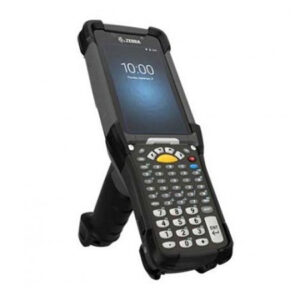
With great anticipation my brand new Motorola MC9500K mobile computer arrived on March 25, 2010.
First impressions was that it is a solid unit with a nice balance and weight to it. I couldn't wait to start playing with it but the first thing to do was charge the battery.
The model I had ordered was the MC9596-KDABAB0000 - basically the version with everything!
Wi-Fi
Bluetooth
Mobile Phone/GPRS
GPS
Imager barcode reader
3.0 Mega-pixel camera
Alpha-numeric keypad
In this review I will cover:
unpacking
setting up
battery
barcode scanning & demo program
Wi-Fi
mobile phone
gprs
colour screen
Soti Pocket Controller Pro
DataWedge
Camera
Unpacking
Inside the MC9500 box is the unit itself and the new battery pack as well as a Quick Start Guide & Regulatory Guide. Read the Quick Start guide to save yourself frustration.
If you want to test the phone you will have to insert your SIM card. According to the Quick Start Guide here are the instructions:
Press the Power button to suspend the MC9596-K.
Wait for red Decode LED to turn on and then turn off.
Unhook handstrap.
Press battery release buttons and remove battery.
Remove SIM cover using flathead screwdriver.
Slide SIM card holder to the left.
Lift card holder.
Insert SIM card into SIM holder.
With point 3 to unhook the strap, stretch it up past the camera to unhook it.
To release the battery in point 4, squeeze the two battery release buttons. I have found that this is not enough to get the battery out. Using the stylus push the tip into the bottom to push the spring loaded clip in to get the battery out. Be gentle.
With point 5, I had some problems trying to get the cover off since I was uncertain about how much force to use. Being a metal flat head screw driver you are going to slightly damage the plastic cover trying to twist it off. Be as gentle as possible not to damage the edges too much.
Make sure that you do not damage the rubber seal that is in the groove. If you do not replace this SIM Card cover correctly the MC9500K will not be water proof or meet the IP67 rating.
Replace the SIM Card Cover.
Insert the battery and rehook the strap.
Turn on the MC9500K.
The battery pack will probably have enough charge to power the MC9500K but it is best to charge it overnight.
The Cradle
The MC9500K cradle is a stylish new design and unlike all previous cradles that relied on the Motorola mobile computer being inserted into the cradle, this design allows the MC9500K to hang and gravity pushes the unit onto the contacts.
Connecting the Power Cable and USB Cable
At first I was puzzled as to where the power and USB connections were hiding on this cradle. They are at the top of the cradle at the rear facing down.
The power supply is the same one used for the MC9090 series. P/N#: 50-14000-148R
The USB cable is not the standard USB cable. It is a micro USB cable (type B plug). You can buy this at Jaycar for about $10.00.
Part Number is WC7724, EAN barcode 9319236958391
Battery
The new battery with the indicator feature is a brilliant idea and is so easy to use even though you can check the battery status within Windows via 'Start' -> 'System' -> 'Power'. Regardless, pressing the 'circle' button is easy. Pressing the Motorola logo does nothing.
The big advantage is you can test a battery that is not inserted into an MC9500K.
After pressing the button the indicator panel will light up:
The Motorola logo will light up:
Green light = Healthy
Red light = Unhealthy
5 bars in the display indicates the battery is fully charged. One to four bars means the battery is partially charged.
X means that the battery is unhealthy.
Barcode Scanning & Demo Program
Straight out of the box the MC9500K can't scan a barcode. However, after you connect your MC9500K to your wireless network and open Internet Explorer (Start -> Internet Explorer), the default web page opens:
Tap on 'Get Demo' to download and install the application.
Once you have installed the 'Demo' program run it to see the following features:
Scan
Motion
Battery
GPS
Camera
I'll leave it to you to explore each of these functions. However I will show you the 'Challenge' feature in the 'Scan' demo since I think this is a really cool thing to see.
Note: if you have installed DataWedge V3.1 and it is running, the Demo program will fail to run and will eventually give you a 'Stack Overflow' error. Exit DataWedge first before running the Demo program.
Wi-Fi
Windows Mobile 6.1 on the MC9500K has some new menu options in the 'Wireless Manager' when compared to the MC9090 with Windows Mobile 5.0:
Support for:
IPv6
Logos & Certificates
Connecting the MC9500K to a wireless network is the same as for the MC9090 or any other Motorola mobile computer.
If you are connecting with TKIP encryption, for example, you will be asked for the 'Security Mode' in which case you would select 'WPA - Personal' or 'WPA2 - Personal' assuming your existing Windows Mobile 5.0 MC mobile computers are connected with 'Authentication = None' and 'TKIP' as well.
The Wi-Fi is fast and the MC9500K connects quickly. In general, you will notice that Windows Mobile 6.1 runs faster than Windows Mobile 5.0.
Mobile Phone
As mentioned above, insert your SIM card and you are good to go. As a mobile phone I have found the clarity of the voice conversation to be excellent. More importantly, the volume with the speaker on means you can have a conversation in hands free mode with the MC9500 at arms length or lying on the passenger seat next to you and you can hear the person clearly. I was really impressed by this.
If you thought you got strange looks using the MC55 as a mobile phone (see MC55 review) then the MC9500K will leave onlookers speechless.
Connecting to Telstra Next G
If you have a PIN code for your phone when the MC9500K turns on it will ask you to enter it in. You will have only three attempts to get it right. You are only asked for the PIN code after a warm or cold boot or if you have removed or inserted your SIM card. Turning the MC9500K on and off does NOT ask you for the PIN code each time.
GPRS
If you are connected to a wireless network and have the phone on as well, any internet connection will default to using the wireless network. When you leave the office and are no longer connected to your wireless network, the MC9500K will automatically try and connect via GPRS.
You will have to setup your GPRS and have a phone plan that includes data.
The settings that I have successfully used on the Motorola MC55, MC9094 and MC9500K are as follows: (tap on 'Start' -> 'Settings' -> 'Connections')
Since I have already created a new modem connection, I am going to 'Manage existing connections'.
If this is your first connection, tap on 'Add a new modem connection' and fill in the details:
If creating a new connection: select 'Cellular Line (GPRS)' from the drop down list.
Access Point Name: telstra.wap.mnc001.mcc505.gprs
or
telstra.internet.wap.mnc001.mcc505.gprs
For the 'User Name' and 'Password' I have used my email address and password which is the same as on my laptop for Outlook.
After entering in that, tap on the 'Advanced' button.
Tap on the 'Servers' tab.
In this screen I entered in:
203.50.170.2 for the DNS.
For the Alternate DNS I entered in 139.130.4.4
Then tap 'Ok' which returns you to the User Name/Password screen.
Tap 'Finish' in the bottom right hand corner.
Make sure the 'Wi-Fi' is off and now try connecting to Internet Explorer. Your GPRS connection 'My Connection' should work and connect you to the internet. If you have connection problems you will get a notification. Check your settings and spelling.
One thing that causes problems is if this screen says: 'My ISP'
I have found it to work when it says: 'My Work Network'
To change this setting, from the 'Connections' screen 'Tasks' tab, select the 'Advanced' tab:
then 'Select Networks': change to 'My Work Network' in the drop down list.
Colour Screen
The colour screen on the MC9500 is bright and easy to read in a wide variety of lighting conditions.
Soti Pocket Controller Pro
As you can see from the above screen shots and video presentation, Soti Pocket Controller Pro installs and runs on the MC9500K without any problems. Read more about Pocket Controller Pro.
DataWedge V3.1
DataWedge allows you to scan barcodes into any application without having to do any programming. Any barcode data is placed into the application where the cursor is positioned.
Please note that if DataWedge is running that the Motorola Demo program will not function properly. Exit DataWedge to use the Demo Program.
The 3 mega-pixel camera takes really good photos however I have noticed a slight delay between when you take the photo and hear the shutter sound to the actual image taken. When taking a photo do not move until you see the image on the screen about a second after you hear the shutter sound. Moving before then you will blur the photo.
Note: If DataWedge is running the camera will NOT work. Exit DataWedge first.
Summary
Likes:
In my opinion, the best barcode scan engine I have seen in 20 years in the industry. The SE4500 2D scan engine is awesome.
Easy to hold, well balanced and very ergonomic.
The battery is brilliant. The indicator feature gets rid of the problem of staff leaving the office with flat batteries.
Dislikes:
Haven't found one yet!
If I have to be really picky I would have preferred if they had used the same USB cable as the MC55/70/75/3000 cradle.
Still Not Convinced it's a Good Investment?
Fedex has bought 100,000 Motorola MC9500K's. Enough said!
Comparing the MC9500K to the MC9090 Series
We have prepared a comparison between the MC9500K and the MC9090 brick version. To read more click on the picture below.