The printing is fine. The label is in the wrong place.
Feeding two for every one printed, skipping every second label, printing over the gap, starting halfway down. Four things cause nearly all of it, three of them cost nothing, and most of them are a phone call rather than a repair.
Ring us before you book anybody to come out. A feeding fault is usually a setting, and a setting is free.
Twice this week that has saved a customer a call-out.
Not a sales position. It is just what the fault usually turns out to be.
One of the two had already asked for the technician, the way it went last time. We said let us try calibrating it over the phone first. At the end of it, with the printer working, we told him we were only trying to save him some money. He laughed.
The other was a printer that had started dropping labels mid-run. Same answer, same afternoon, nobody in a van.
A ZM400, and a sticker we put on it in 2012.
A customer rang yesterday we had not heard from in years. He still had our sticker on the side of a Zebra ZM400 we sold him around 2012, and his labels were coming out offset.
We happened to have a ZM400 on the desk. So we pressed the buttons here and told him which ones to press there — a clean, then a manual calibration. Twenty-one minutes and it was right.
He said it beat waiting for someone from IT and filling in the paperwork. That is the honest reason this page exists: the machine was fourteen years old, the fault was a setting, and the fix was a conversation.
Different descriptions, usually one fault.
The printer has lost track of where one label ends and the next begins. Everything below is that, said four ways.
| Two labels come out for every one printed |
| It skips every second label |
| The print runs over the gap, or starts halfway down |
| It feeds a run of blanks and stops |
How much it should waste before it gives up: twenty or thirty labels. A printer hunting for the gap feeds a handful and stops. That is it working as designed, not running away with your stock.
If it is putting a thousand labels on the floor, turn it off. That is not calibration and nothing on this page will fix it. Ring us.
Four things, commonest first.
The Windows printer driver
A setting wrong on the driver rather than on the printer. The machine is doing exactly what it was told — which is why the printer looks faulty and is not.
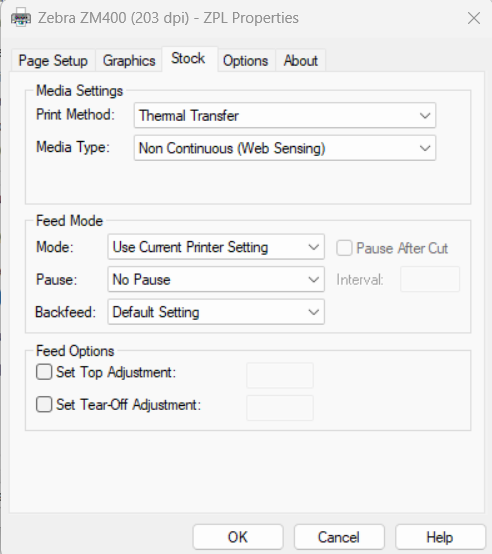
On a Zebra that is usually the Seagull Scientific driver, the one BarTender installs, whose properties window is titled ZPL Properties. The two settings that cause this sit together on its Stock tab. The screen is below →
The wrong media type
Gap, black mark or continuous. Tell a printer to hunt for a black mark on stock that has a gap and it will never find one, so it keeps feeding and looking. This one explains most of the blanks.
A dusty sensor
Paper dust and adhesive build up over the sensor until it cannot see the gap it is pointed straight at. Common on a machine that has been in a warehouse for a few years and never had the lid off.
The sensor is in the wrong place
Where the sensor slides across, it can end up too far left or right to see the label at all. Nothing is broken and nothing is dirty — it is simply not looking at the labels.
Two boxes on the Stock tab, wrong and right.
Reached from BarTender’s print dialog, or from the printer properties in Windows. Both of these are the same ZM400 on our own desk, a few minutes apart.
Not sure which driver you are looking at? The About tab in that same window names it.
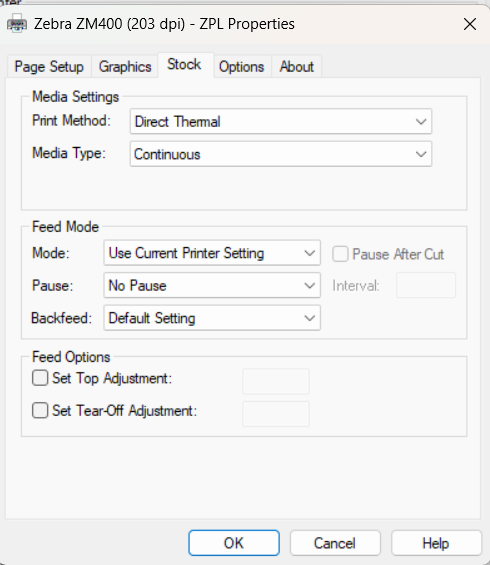
Print Method: Thermal Transfer means a ribbon is in it
If that box says Thermal Transfer, there has to be a ribbon in the printer. That is what thermal transfer is — the print comes off a ribbon rather than out of the paper.
Media Type: gaps mean Non Continuous (Web Sensing)
If your labels have gaps between them, it is Non Continuous (Web Sensing). Stock with a black mark printed on the back is Non Continuous (Mark Sensing), and a roll with nothing between one label and the next is Continuous.
Match it to the stock actually in the machine. A good share of feeding faults stop at this box.
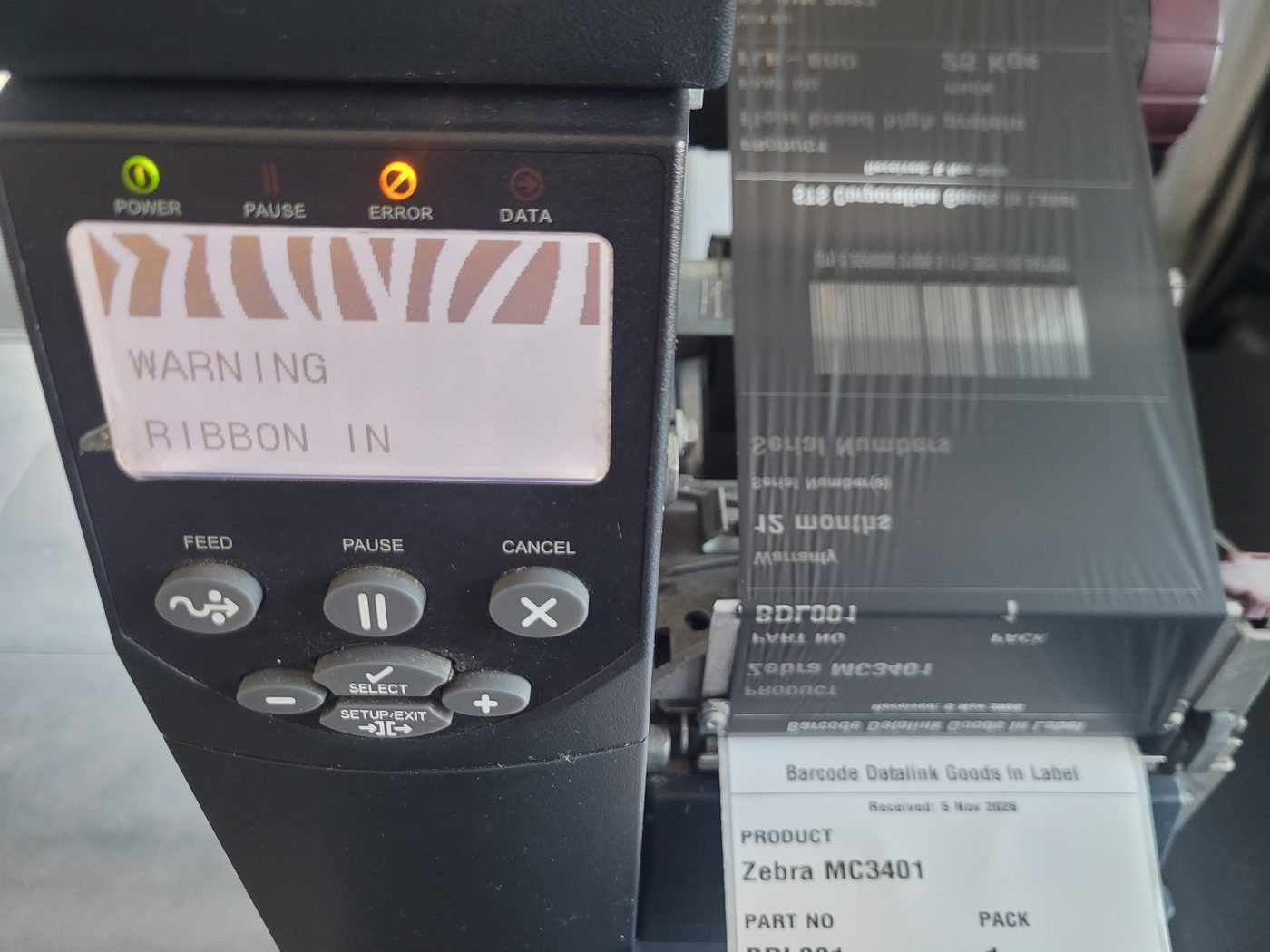
An error light, then a printer that sorted itself out.
Set wrong deliberately on our own ZM400, so the page can show you rather than tell you.
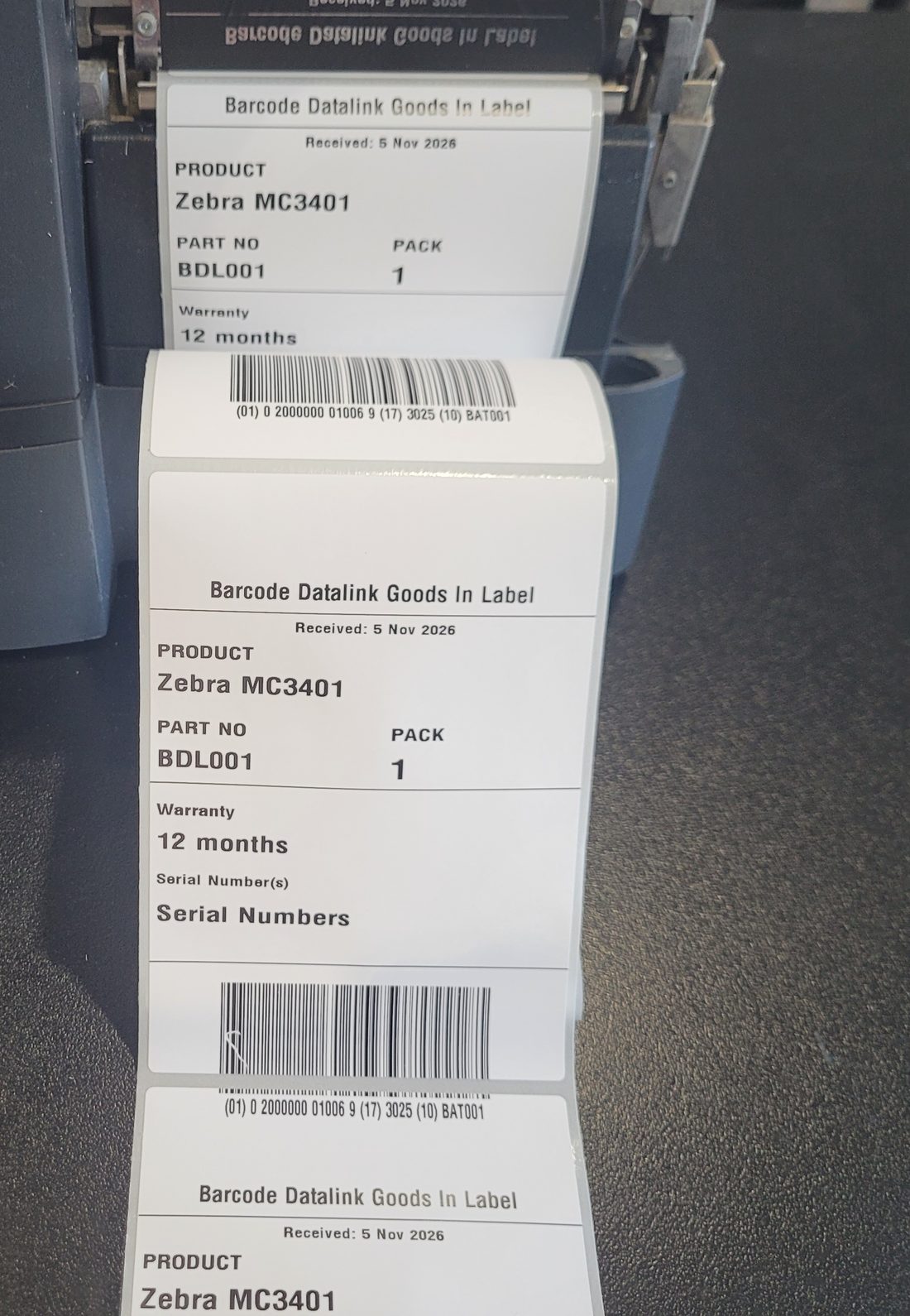
Set to Thermal Transfer and Non Continuous (Web Sensing), with nothing else changed, it printed. The first few came out offset — the printer was still working out where the gaps were.
Four things you can do now, for nothing.
Blow the sensor out with air
A good blow out fixes a fair share of them on its own, and it takes a few seconds.
Then wipe it gently, if you can reach it
A wet wipe is fine. Do not drown it. This is a sensor, not a worktop.
Look for the light
On most Zebra printers the sensor shows as a small bright light. If there is no light there any more, the sensor itself may have failed — and that is the one fault on this page that is not a setting. Worth knowing before you spend an afternoon on the driver.
Run a manual calibration
So the printer measures the labels you are actually using instead of the ones it was last told about. This is the step that fixed the ZM400 above, and it is the one worth doing with us on the phone.
Ring us and we will do it with you.
The sequence is different on nearly every model, and the one for your machine is the only one that matters.
We keep these machines here. The ZM400 call worked because there was a ZM400 on this desk to press the buttons on while he pressed his — and the same is true of the Z4M, the ZT410 and ZT411, the GK420 and the ZD421 and ZD621.
0414 53 53 95, or andrei@barcodedatalink.com. Have the model off the plate in front of you, and the labels you are actually running.
About an hour is the line.
If an hour on the phone has not fixed it, it is not a setting. Then it is either a technician out to you or the machine comes to us, and by that point we both know why rather than guessing.
You get the price before anything is booked, either way — how a send-in repair works, start to finish →
Two faults that look like printing problems and are not feeding ones.
A white line down every label is not a feeding fault. That is a burnt-out element and the head is finished — no amount of cleaning brings it back. Printheads, and how to pick the right one →
Faint, patchy or fading print is usually the platen roller rather than the head, and costs a fraction of one. Replacing a printhead when the roller is the problem buys you a few months and another printhead. Service and repairs →